
Thank you for choosing the Tenways EH20 Smart Helmet. This article is here to help with common questions about setup, connection, and usage. For more detailed information, feel free to consult the full EH20 User Manual.
📱 1. Connect the Helmet to the Tenways App 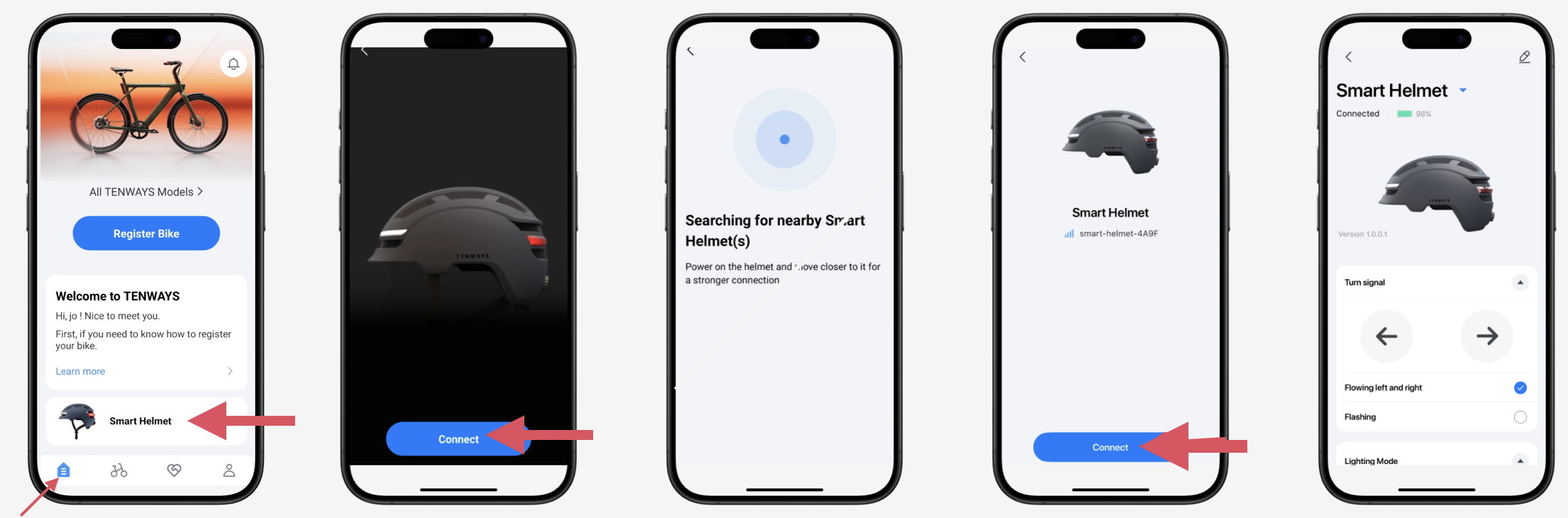
-
Turn on the helmet
Press and hold the round button on the back of the helmet until you hear "Power on." -
Connect via the app
Open the Tenways app → Go to the homepage → Scroll down to the bottom and tap Smart Helmet → Tap Connect → Wait for the app to find the helmet’s Bluetooth signal → When the helmet appears, tap it to bind. Please note: You must stay on the specific helmet page within the app to establish and maintain the connection. Once you leave the page, the app stops the data transmission to save power, causing the connection to pause or drop until you return.
🔗 2. Pair Your Remote Control with the Helmet
Step 1: Press and hold the round button on the helmet until the rear light on the helmet starts flashing and you hear “Pairing” in the speaker.
Step 2: Long-press the and
buttons together to pair the remote control with the helmet
Once connected, the helmet will notify you by voice, and then you can control it via the remote control.
📶 3. Pair Bluetooth for Audio (Music, Podcasts, Calls)
The same steps work for phones, laptops, tablets, etc.:
- Turn on the helmet.
- On your device (phone, computer, etc.), go to Bluetooth settings.
- Find and select "Tenways Helmet" from the list of available devices.
- Once connected, you're ready to play music, podcasts, and more.
🔄 4. Unlink the Helmet from Your App Account
- In the app → Home → Smart Helmet → scroll to the bottom → tap Unlink Smart Helmet
- Confirm removal
- After this, the helmet can be paired to a new account or re-added
👪 5. Share the Helmet with Family/Friends
- Others can either log in using your Tenways account or unlink and then re-link the helmet from their own account.
✏️ 6. Rename the Helmet in the App
- In the app, go to Home → Smart Helmet → tap the edit icon (top-right corner)
➕ 7. Add Another Helmet to the App
- In the app → Home → Smart Helmet → tap your device name → tap "Add another helmet"
- Simply repeat the “Connect the Helmet” process
🔌 8. Charging Instructions
- Use the included USB‑C cable along with your own charger
- While charging: rear LED flows red side-to-side
- Fully charged: LED turns off
- Charging time: approx. 2.5 hours (950 mAh battery)
🔋 9. Replace the Remote Control’s CR2032 Battery
- Remove the back cover with the included Allen key
- Insert a new CR2032 battery (positive side up). Please note that the remote control comes with only one battery and if it runs out, a spare battery needs to be purchased separately.
- Secure the cover
🔧 10. Mount the Remote
If you want to mount the remote on your handlebar, you’ll find two rubber rings in the box (one’s a spare). Just follow the steps shown in this video.
Comments
0 comments
Please sign in to leave a comment.